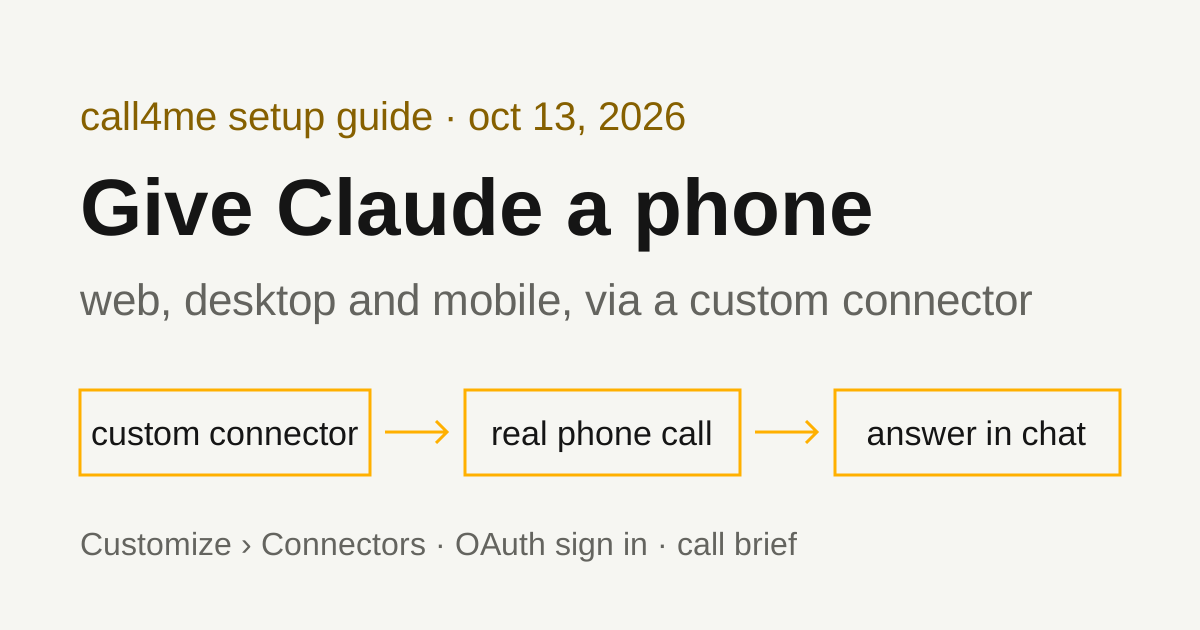
Can ChatGPT make phone calls? Add a calling MCP server as a plugin
ChatGPT's custom MCP servers now live under Plugins. Here is how to add call4me as one, sign in with OAuth, confirm the call, and follow it to a transcript.
 Nick Khami / / 9 min read
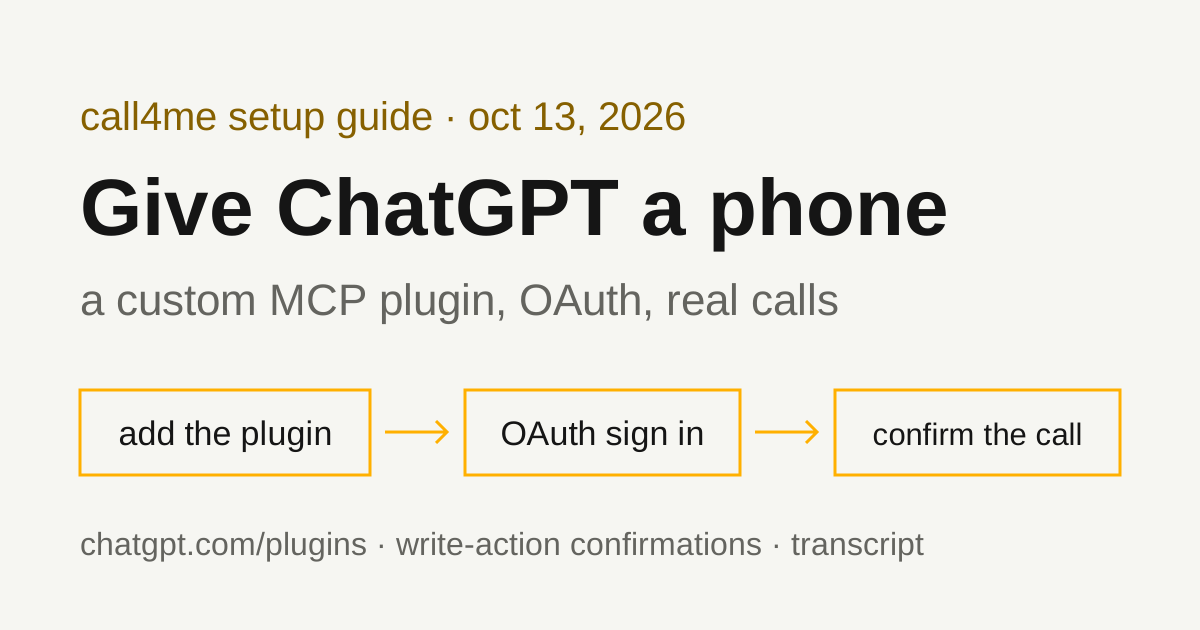
Yes, ChatGPT can make phone calls once you add a calling MCP server as a custom plugin. ChatGPT doesn't dial on its own. You connect call4me at chatgpt.com/plugins, sign in, and then ask ChatGPT to call a business with a goal and clear limits. A voice caller handles the conversation, and ChatGPT reads the status, transcript and outcome through tools.
The short version:
- Open ChatGPT Plugins on the web, select the plus button, then Add custom MCP server.
- Name it
call4meand enterhttps://call4.me/mcpas the Server URL. - Choose OAuth for authentication, select I understand and want to continue, then Create as a plugin.
- Install it from your personal plugins, sign in to call4me, and type
@in a new chat to pick it.
How we checked this
The ChatGPT steps on this page come from OpenAI's own documentation, linked where each one is used: Add custom MCP server, the plugins quickstart, Connect and test your plugin, plugin authentication, Plugins and dots. None of those pages shows a date. We read them on October 13, 2026.
The call4me side is tested. ChatGPT connects to the same endpoint, OAuth sign in and tools we used in our Codex, Claude Code, GitHub Copilot CLI and LangChain guides.
"Developer mode" and "custom connectors" are now Plugins
If you're following an older guide that says to turn on Developer mode under Settings, or to add a "custom connector," that flow has changed. On October 1, 2026, the lead of OpenAI's plugins developer platform team posted on the OpenAI forum that ChatGPT no longer needs an explicit developer mode to connect custom MCP servers, and that you add them from chatgpt.com/plugins instead. The same post says the workspace admin setting once called "Developer mode" is now called "Create custom MCP servers," with existing settings kept.
OpenAI's current guide describes it the same way: a custom MCP server is added "to ChatGPT as a plugin," and "ChatGPT supports both read and write tools from your server."
Before you start
You need:
- ChatGPT on the web. OpenAI's guide says to "Use ChatGPT on the web" to add the server, and that "Workspace permissions and security restrictions, including Lockdown, apply to adding and using custom MCP servers."
- A call4me account. You sign in with Google or X during setup.
- Calling credits for the phone part. Calls cost $0.25 a minute from pickup, including phone menus and hold time, and prepaid credits start at $10. A free US number is assigned on your first call.
Which ChatGPT plans can do this? We couldn't confirm it from an OpenAI page we could load. Check whether your plan or workspace allows custom MCP servers; Business and Enterprise admins control this.
Add call4me as a custom MCP plugin
These steps follow OpenAI's Add custom MCP server guide:
- Go to ChatGPT Plugins.
- Select the plus button, then Add custom MCP server.
- Enter a name, such as
call4me, and optionally a description. Under Connection, enter the Server URL:https://call4.me/mcp. - Configure authentication. Choose OAuth.
- Review the risk warning and select I understand and want to continue.
- Select Create as a plugin.
OpenAI's testing page adds a last step: review the tools and metadata ChatGPT discovered from the server. You should see the call4me tools listed in the table further down.
Why OAuth, and not an API key
OpenAI lists three authentication options: OAuth, No authentication, and OAuth or no authentication. There's no field for a static header or API key. The authentication page says ChatGPT can't "present custom API keys." So the call4me API key that works in Codex and Copilot CLI has no place here. Keep it out of the chat, too.
Pick plain OAuth, not the mixed option. OpenAI says the mixed option runs the first connection and tool listing without sign in, and call4me requires sign in for every request, including those.
You don't need to create OAuth client credentials. OpenAI's guide says that if you don't supply static credentials, ChatGPT can register itself. Its auth page says ChatGPT prefers Client ID Metadata Documents (CIMD) when a server supports them, and uses dynamic client registration when the server publishes a registration_endpoint. call4me publishes a registration endpoint and S256 PKCE, the same flow Codex CLI and Claude Code completed in our tests.
Install the plugin and sign in
Creating the plugin doesn't install it. From OpenAI's quickstart:
- Go to your personal plugins. The plugin you created should be there.
- Open it and select the plus button to install it.
- Return to the ChatGPT homepage. The quickstart switches the tab at the top from Chat to Work and starts a new Work chat. OpenAI's Plugins page says plugins work in both Chat and Work.
- In the prompt box, type
@and select call4me.
The call4me sign in opens when ChatGPT asks for it. OpenAI's Plugins page says "Some plugins ask you to authenticate during install. Others wait until the first time you use them," and the auth page says ChatGPT starts OAuth "when the user first invokes a tool." Sign in with Google or X and approve the call4me consent screen. Your ChatGPT account and your call4me account stay separate.
A good first prompt
Start with a read-only check, so nothing dials:
@call4me Use call4me_get_balance to check the connection. Show my balance and my call4me numbers. Do not place a call.
If you have no number yet, that's expected. The free US number is assigned on your first call.
Then give it a bounded call brief. Say who to call, why, what to ask, what the caller may share, and when to stop:
@call4me Call [business name] at [their number from their official website]. This is a general question, not about any account.
Ask:
- Do you have [item or appointment type] available this week?
- What does it cost, and is there a deposit?
- What do I need to bring?
Limits: keep the call under 10 minutes. Don't book, hold, pay for or agree to anything. Don't give any personal details beyond my first name. If they ask something this brief doesn't cover, say I'll follow up.
After placing it, follow the call with call4me_get_call until it ends. Then tell me who answered, the answer to each question, and anything still unknown. Do not place any other call.
OpenAI's guide recommends being explicit like this: name the plugin and tool, and say "Do not use built-in browsing or other tools" when you want only one plugin used. OpenAI suggests including the tool name when needed, such as call4me_place_call.
Confirm the call when ChatGPT asks
ChatGPT will ask before it places a call. OpenAI's guide says "Write actions by default require confirmation," and that tools without the readOnlyHint annotation "are treated as write actions." call4me marks its lookups as read-only: call4me_get_balance, call4me_get_requirements, call4me_get_call, call4me_list_calls and call4me_get_recordings. Placing, scheduling or ending a call, answering a question mid-call and joining a call are not marked read-only, so those count as write actions.
Before you approve, expand the tool call and read the input: the number, the business, the questions and the limits. OpenAI says the full JSON of each tool input and output is available there.
You can remember an approve or deny choice for a tool, and OpenAI says it then "will apply that choice for the rest of that conversation." A new conversation asks again, and so does refreshing the same one. Only remember approval for call4me_place_call if you're fine with ChatGPT dialing again in that conversation without asking.
What happens when the call runs
| Tool | What ChatGPT does with it |
|---|---|
call4me_get_requirements |
Checks what a type of call needs before dialing |
call4me_place_call |
Starts the call you approved and returns a call ID |
call4me_get_call |
Reads status, transcript, open questions and the outcome; wait_seconds waits for a change |
call4me_answer_question |
Answers if the caller needs something mid-call |
call4me_get_recordings |
Gets the recording after the call |
call4me_get_balance |
Shows credits and your call4me numbers |
call4me_schedule_call |
Dials later, inside the business's hours |
call4me_list_calls |
Lists recent and scheduled calls |
call4me_hang_up |
Ends a call early |
call4me_connect_me |
Rings your phone so you can join the call |
The sequence is the same as in our tested guides. ChatGPT places the call and gets a call ID back. It then calls call4me_get_call with wait_seconds again and again until the call ends. When it's done, it reports the outcome, and the transcript and recording are there if you want them.
A call ID means the call was submitted, not that anyone answered. A finished call means the line closed, not that the business answered your questions. The report should come from the transcript, and it should say what's still unknown. If the caller raises a question while a person is waiting on the line, ChatGPT can answer it with call4me_answer_question, which counts as a write action, so expect to confirm it quickly.
If the business is closed, ask for a scheduled call instead. Our scheduling guide shows the brief it needs, since nobody may be watching when it dials.
Can a ChatGPT dot use call4me?
Possibly. OpenAI's dots page says "Your dot can use supported plugins installed and enabled for your account," and that "Each plugin must be connected and permitted to perform the actions you request." So once call4me is installed and signed in, a dot should be able to use it, if custom MCP plugins count as supported there. That page doesn't say, and we haven't tried it.
Dots are rolling out gradually. The same page lists them for Pro 100, Pro 200 and Pro 500 users over 18 outside the EEA, the UK and Switzerland, with Business Premium and Enterprise being made available worldwide; Enterprise is off by default until an admin turns it on.
Troubleshooting
These come from OpenAI's documentation and the forum post above, not from a ChatGPT session of ours.
You don't see Add custom MCP server. Check whether your plan or workspace allows custom MCP servers. In a workspace, admins control MCP server access from Workspace apps and Permissions & roles, per OpenAI's plugin controls page, and the permission formerly called "Developer mode" is now "Create custom MCP servers." Lockdown and other workspace security restrictions also apply.
An older guide says to turn on Developer mode. That step was removed in favor of chatgpt.com/plugins. See the section above.
You created the plugin but can't use it. Install it first from your personal plugins. OpenAI says to "Install it before using it in a conversation."
ChatGPT asks to confirm every call. That's the default for write actions. You can remember the choice for one conversation; new conversations ask again.
The tools look out of date. Open the plugin at ChatGPT Plugins, select Refresh, and start a new conversation, as OpenAI's testing page describes. App settings also have a details page where you can turn individual tools on or off.
ChatGPT answers from the web instead of calling. Mention @call4me, name the tool, and tell it not to use built-in browsing or other tools.
A status check times out. Check the same call ID again with call4me_get_call before asking for another call. A timeout doesn't mean the call ended, and placing it again can make a duplicate call.
Related guides
For tested setups in other agents, see Codex phone calls, Claude Code phone calls, GitHub Copilot CLI phone calls and LangChain phone calls. To compare calling services, read our phone calling MCP comparison. Connection details for every client are on the call4me MCP page.