How to make phone calls from Perplexity with a custom connector
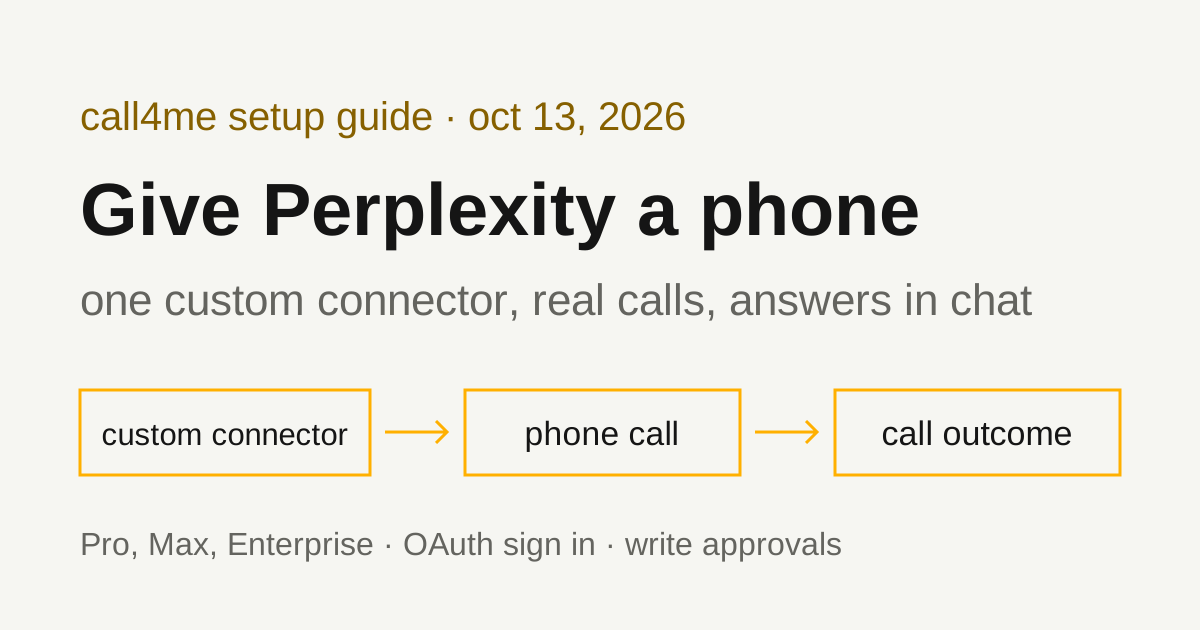
Perplexity can't dial a phone on its own, but Pro, Max and Enterprise accounts can add a remote MCP server as a custom connector. Add call4me once, sign in, and Perplexity can place a real call and bring back the answer.
 Nick Khami / / 8 min read
Yes. Perplexity can make phone calls once you add call4me as a custom remote connector. Perplexity doesn't place calls by itself. Custom connectors let Pro, Max and Enterprise subscribers connect Perplexity to any remote MCP server, and call4me is one. Once it's connected, give Perplexity a brief with a goal and clear limits. It places the call, follows it until it ends and reports the outcome. A voice caller handles the conversation; Perplexity reads the status and transcript through tools.
The short version:
- In Perplexity on the web, open Account settings, then Connectors, click + Custom connector and choose Remote.
- Name it
call4me, set the MCP Server URL tohttps://call4.me/mcp, choose OAuth for authentication and Streamable HTTP for transport. - Tick the acknowledgement box, click Add, then click the new connector card and complete the call4me sign in in your browser.
- Ask Perplexity to run
call4me_get_balanceand not to place a call. If that works, you're connected.
How we checked this
The Perplexity steps on this page come from Perplexity's own pages, loaded on October 13, 2026:
- Adding Custom Remote Connectors (help center, last modified September 3, 2026)
- Troubleshooting connectors (help center, no date shown)
- Local and Remote MCPs for Perplexity (help center, last modified September 8, 2026)
- The changelog entry Computer for Pro subscribers, Computer for Slack, and Personal Computer (dated March 12, 2026), which announced custom connectors
The call4me side is tested. The same endpoint, OAuth sign in and tools are used in our tested guides for Codex, Claude Code, GitHub Copilot CLI and LangChain.
Which Perplexity plans can add a custom connector
Perplexity's changelog says "Pro, Max, and Enterprise subscribers can now connect Perplexity to any external tool or data source" through MCP, by adding "a custom remote connector by providing an MCP server URL." The troubleshooting page repeats that custom MCP servers are limited to Pro, Max or Enterprise, and that some connectors work only on certain surfaces (web, desktop, mobile).
On Enterprise there's an extra switch. The custom connector article says an admin setting, Allow members to add custom connectors, controls whether non-admin members can add their own remote connectors, and that it's disabled by default. If you're on an Enterprise workspace and don't see + Custom connector, ask your admin about that toggle. Admins can also add a connector for the whole organization from Enterprise settings, Permissions, Connectors permissions. For a calling tool, a personal connector makes more sense: each person signs in to their own call4me account, and calls bill to whoever signed in.
You also need a call4me account and calling credits for the phone part. Your Perplexity sign in and your call4me connection are separate accounts.
Add call4me as a custom remote connector
These are the steps from Perplexity's custom connector article, with call4me's values filled in.
- Go to Account settings, then Connectors.
- Click + Custom connector in the top right corner.
- In the pop-up, select Remote.
- Fill in the fields:
| Field | What to enter |
|---|---|
| Name | call4me |
| MCP Server URL | https://call4.me/mcp (Perplexity requires HTTPS) |
| Description | Optional, for example "Places phone calls to businesses" |
| Authentication | OAuth |
| Transport | Streamable HTTP |
| Icon | Optional, 128 KB maximum |
- Check the acknowledgement box. Perplexity uses it to confirm you understand the risks of custom connectors, and the article is plain that "Perplexity cannot verify third-party MCP servers."
- Click Add. The connector appears on your Connectors screen.
- Click the connector card to start the sign in and enable it. Complete the call4me sign in in your browser (Google or X) and approve access.
To change or remove the connector later, the article says to click the ellipsis (⋮) on its card.
Why OAuth instead of an API key
Perplexity offers three authentication choices for a remote connector: None, API Key and OAuth 2.0. Its article describes the API key option only as "a static API key provided during setup" and doesn't say which header Perplexity sends it in. call4me expects an API key as Authorization: Bearer <key>, so we can't tell you the API key option will line up. Use OAuth.
OAuth fits call4me's server. Perplexity's article says you may need a Client ID and Client Secret only "if the MCP server does not support dynamic client registration," and that if the server supports discovery at /.well-known/oauth-authorization-server, "endpoints and scopes can be detected automatically." call4me publishes that discovery document with a registration endpoint, so you shouldn't need to enter a Client ID or Secret. That's the same browser sign in, with dynamic client registration and PKCE, that Codex CLI and Claude Code completed in our tested guides.
Perplexity's redirect URL for custom connector OAuth is https://www.perplexity.ai/rest/connections/oauth_callback (or https://enterprise.perplexity.ai/rest/connections/oauth_callback on the Enterprise subdomain). With dynamic registration, Perplexity registers that URL itself, so there's nothing for you to copy into call4me.
If you ever do use an API key anywhere, keep it out of the chat. Don't paste a key into a Perplexity conversation as a fix.
What about the Mac app and local MCP?
You don't need it for call4me. Perplexity's MCP article covers local MCP servers on macOS, which run on your computer through a helper app called PerplexityXPC that you install from the Connectors screen. That's for servers you start with a local command. call4me is a remote server, so the web steps above are the ones to follow. That older article still says remote MCP is "coming soon"; the custom connector article and changelog describe remote connectors as available now.
Check the connection before dialing
Start a new chat and make sure Perplexity will actually use the connector. Its troubleshooting page says some surfaces need you to pick the connector for the chat with the connector picker or an @ mention, and that if Sources or Focus is set to Web-only, Academic or Social, "Perplexity will not call your connected apps."
Then ask:
Use call4me_get_balance to check my call4me connection. Show my balance and my call4me numbers. Do not place a call.
If it returns your balance, the connection works. If the numbers list is empty, that's expected on a new account: call4me assigns a free US number on your first call.
Give Perplexity a bounded calling task
Perplexity is good at the research part, so let it find the business first and then call about the gaps. Say who to call, what to ask, what the caller may share, and when to stop:
Find the official phone number for the downtown location of [business] on their website. Then use call4me to call once and ask: [question 1], [question 2], [question 3]. This is an inquiry only. The caller must not book, buy, cancel, or agree to any charge, and must not give out a card, address or account details. Keep the call under 15 minutes. After placing it, follow the call with call4me_get_call until it ends. If an open question comes up that this brief doesn't answer, say it's unknown rather than guessing. Then report whether a person answered, the answer to each question, and anything still unresolved. Do not place any other call.
For a booking, add the date, party size, name and acceptable alternatives. Research needs none of those, so tell Perplexity not to invent them.
Perplexity's troubleshooting page says it "asks you to approve consequential writes before they run." Placing a call is the kind of action you should expect to approve. Check the number and the brief on the approval card before you confirm. If you dismiss the card by accident, the page says to ask Perplexity to perform the action again.
What happens when the call runs
| Tool | What Perplexity does with it |
|---|---|
call4me_get_balance |
Reads your balance and call4me numbers |
call4me_get_requirements |
Checks which details a type of call needs before dialing |
call4me_place_call |
Starts the call and returns a call ID |
call4me_get_call |
Reads status, transcript, open questions and the final outcome; wait_seconds lets it wait for a change |
call4me_answer_question |
Sends an answer if the caller needs one mid-call |
call4me_get_recordings |
Retrieves the recording after the call |
call4me_schedule_call, call4me_list_calls |
Sets a call for later, such as when a business opens, and lists calls |
call4me_hang_up, call4me_connect_me |
Ends a call early, or rings your phone so you can join |
The sequence is the same as in our tested guides: Perplexity places the call, then follows it with call4me_get_call until it ends, then reports the outcome. The transcript and a recording are available afterward; a recording can take a minute to appear. A call ID means the call was submitted, not that anyone answered. The report should come from the transcript and outcome.
Calls cost from $0.25 per minute from pickup, including phone menus and hold time, paid from prepaid credits that start at $10. Current rates are on call4.me.
Troubleshooting
These come from Perplexity's troubleshooting page and custom connector article.
There's no + Custom connector button. Check your plan: custom MCP servers are limited to Pro, Max and Enterprise. On Enterprise, the Allow members to add custom connectors toggle is off by default, so an admin has to turn it on.
Perplexity answers without using call4me. Select the connector in the composer with the picker or an @ mention, and make sure Sources or Focus isn't set to Web-only, Academic or Social. A connector added in your personal account isn't automatically available inside an Enterprise workspace or a Project; add it again from there.
It reads the balance but won't place the call. Look for the approval card. Perplexity asks you to approve consequential writes, and if you dismissed it, ask again. On managed workspaces, the page says "your admin may allow read but block write," so ask your admin to review the connector's permissions.
The sign in window closes or gets stuck. Perplexity's page says OAuth relies on pop-ups and cross-site cookies. Allow both for perplexity.ai, or try a private window with extensions off. You can also remove the connector, wait a few seconds and add it again to force a fresh sign in.
Sign in completes but no tools show up. Remove and re-add the connector to refresh its tool list. If the connector shows an error tag, the article says server validation failed and you need to reconfigure it; check that the URL is exactly https://call4.me/mcp.
A status check times out. Ask Perplexity to check the same call ID again with call4me_get_call before dialing again. A timeout doesn't mean the call ended, and a second placement can make a duplicate call.
Related guides
For the same workflow in agents we've tested, see Codex phone calls, Claude Code phone calls and GitHub Copilot CLI phone calls. To compare calling services and see which AI apps can add a calling tool, read our phone calling MCP comparison. Connection details for every client are on the call4me MCP page.