How to make phone calls from Gemini with MCP
Google now lets Gemini call some businesses for you on Pixel 11. For other calls, you can add a calling MCP server as a Gemini custom app, or connect it to Gemini CLI and Antigravity CLI. Here is what each option covers and the exact setup.
 Nick Khami / / 8 min read
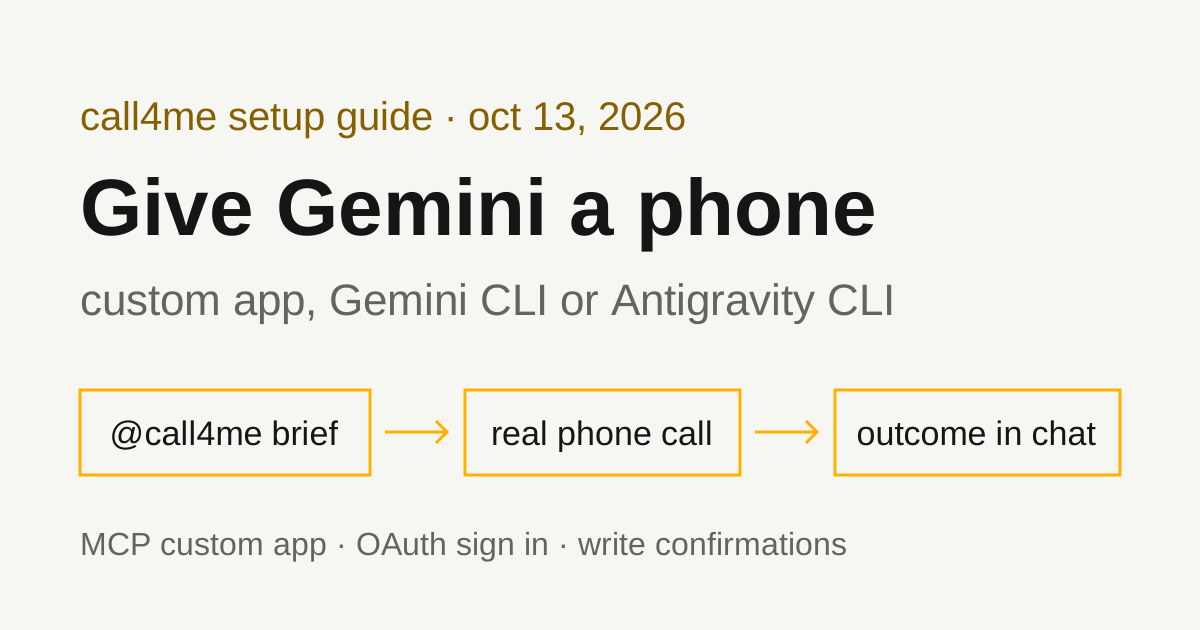
Gemini can make phone calls in two different ways, and they cover different situations. Google has its own built-in calling feature for local businesses on Pixel 11. Separately, the Gemini app supports MCP "custom apps," so you can add call4me as a calling tool from gemini.google.com. Developers can connect the same server to Gemini CLI or Antigravity CLI.
Google's built-in calling versus a custom app
On September 24, 2026, The Verge reported that Google launched an "early experiment" on Pixel 11 that lets you ask Gemini to call local businesses, for example to make a reservation, check if a product is in stock, or reschedule an appointment. Per Google's description quoted in the article, Gemini navigates phone menus, waits on hold, and talks to the person on the other end, while you follow a live transcript and can take over at any point.
The article gives the rollout scope: an "early preview" for "Gemini paid subscribers enrolled in the Phone by Google Public Beta on Pixel 11 in the US." If that describes you and the call is to a local business, try Google's feature first.
A custom app is for everything else. It works in the Gemini web app and, once connected, the Gemini mobile app, so you don't need a Pixel 11 or the Phone app beta. call4me calls from its own numbers rather than your phone, and you can use it from other AI apps and agents with the same account.
How we checked this
- The Gemini steps come from Google's help pages: Connect & manage custom apps for Gemini Apps and Manage your tasks & workflows in Gemini Apps. Neither shows a date beyond the copyright year. We read both on October 13, 2026.
- The CLI steps come from the Gemini CLI MCP documentation and the Antigravity MCP documentation, read the same day.
- The call4me side is tested. The same endpoint, OAuth sign in and tools are used in our tested guides for Codex, Claude Code, GitHub Copilot CLI and LangChain.
What you need for a Gemini custom app
Google's custom apps page lists these requirements:
- Be 18 or over and in the US.
- Sign in with a personal Google Account. For now, work and school accounts aren't supported.
- Have Keep Activity on. Custom apps are unavailable when it's off.
- Have the MCP server URL. The server must follow the standard MCP specifications.
- For now, custom Connected Apps are only available in English.
The custom apps page doesn't list a paid plan. Its opening line mentions building workflows "with Gemini Spark" or taking quick actions in chat. Google's tasks page says Spark was renamed Task, that tasks need a Google AI Pro or Ultra subscription and that tasks can use custom apps. So Google lists no plan for using a custom app in a regular chat, while using one inside a task needs one of those plans.
You also need a call4me account and calling credits for the phone part. Calls cost $0.25 per minute from pickup, including phone menus and hold time, with prepaid credits from $10. A free US number is assigned on your first call. Your Google account and your call4me account are separate.
Add call4me as a Gemini custom app
Google says you can only connect custom apps in the Gemini web app. Once connected, they're available on both web and mobile.
- On your computer, go to gemini.google.com.
- At the bottom, click Settings, then Connected Apps. If you don't see Connected Apps, click Personal Intelligence first, then Connected Apps.
- Under Custom apps, find the "Add a custom app link to get started" field, or click Add a custom app if you've already connected one.
- Enter the MCP server URL:
https://call4.me/mcp - Click Next and follow the on-screen instructions.
Google's page says that if a server doesn't support Dynamic Client Registration, you click Show more next to Advanced features and enter credentials. call4me's server supports dynamic client registration with PKCE, so you shouldn't need that step. Expect a call4me sign in in your browser, with Google or X, and a consent screen.
To make sure Gemini uses call4me for a prompt, type @ and select the custom app.
Check the connection before dialing
@call4me Use call4me_get_balance to check my phone calling connection. Show my balance and my call4me numbers. Do not place a call.
If the result shows a balance, the connection and sign in worked. If there are no numbers yet, that's expected: the free number arrives with your first call.
Give Gemini a bounded calling task
The caller can only say what you give it, so the brief should name the business, the number, the questions, what may be shared, and when to stop:
@call4me Call [your dentist's office] at [their number] about rescheduling my cleaning. Ask what openings they have next Tuesday through Thursday after 3 p.m. You may give my name and date of birth to find the appointment. Don't book anything, don't accept a cancellation fee, and don't give payment details. Follow the call until it ends, then tell me the openings they offered, anything they asked that you couldn't answer, and whether the original appointment is unchanged.
Fill in the business and the number from its official website. If you want a booking, give the date ranges you'd accept and say so explicitly. Research and booking need different permission.
Don't paste passwords, card numbers or account PINs into the chat. Google's tasks page gives similar advice for task threads.
What happens when the call runs
| Tool | What it does |
|---|---|
call4me_get_requirements |
Checks which facts the type of call needs before dialing |
call4me_place_call |
Starts the call and returns a call ID |
call4me_get_call |
Reads status, transcript, open questions and the outcome; wait_seconds waits for a change |
call4me_answer_question |
Answers a question the caller raises mid-call |
call4me_get_recordings |
Retrieves the recording after the call |
call4me_schedule_call |
Dials later, inside the business's hours |
call4me_hang_up |
Ends a call early |
The full list, including call4me_get_balance, call4me_list_calls and call4me_connect_me, is on the MCP page.
A call ID means the call was submitted, not that anyone answered. The assistant should keep checking call4me_get_call until the call ends, then report the outcome from the transcript, along with the recording when it's available. Placing a call is a write action, and Google's custom apps page says "Gemini requires manual confirmation for any write actions," so expect Gemini to ask before dialing.
Gemini CLI and Antigravity CLI
Check which CLI you have first. The Gemini CLI documentation carries this banner: "Unpaid tier and Google One users: Gemini CLI was replaced by Antigravity CLI on June 18th, 2026." If that's you, skip to the Antigravity section.
Gemini CLI
Gemini CLI uses a streamable HTTP server through the httpUrl key in mcpServers in settings.json. The gemini mcp add command writes that entry for you. For OAuth sign in:
gemini mcp add --transport http call4me https://call4.me/mcp
Then start Gemini CLI and run:
/mcp auth call4me
The docs say that when a server returns 401, the CLI discovers its OAuth endpoints and performs dynamic client registration when the server supports it, then opens a browser and stores tokens in ~/.gemini/mcp-oauth-tokens.json. They also say this needs local browser access and won't work in headless or most remote SSH sessions. Run /mcp auth call4me again to re-authenticate when tokens expire.
Alternative: an API key header. For headless machines, copy your personal API key from the account page and read it into your shell without echoing it:
read -rsp 'call4me API key: ' CALL4ME_API_KEY
printf '\n'
gemini mcp add --transport http \
  --header "Authorization: Bearer $CALL4ME_API_KEY" \
  call4me https://call4.me/mcp
unset CALL4ME_API_KEY
Your shell expands the variable, so the key stays out of your history and out of the prompt. It is written into Gemini CLI's settings as a header value. The docs describe environment variable expansion only for the env block, not for headers, so treat that settings file as a secret. The equivalent hand-written entry is:
{
  "mcpServers": {
    "call4me": {
      "httpUrl": "https://call4.me/mcp",
      "headers": {
        "Authorization": "Bearer YOUR_CALL4ME_API_KEY"
      }
    }
  }
}
Use httpUrl, not url. In Gemini CLI, url means an SSE endpoint.
Confirmations. By default Gemini CLI asks before each tool call, and you can proceed once, always allow the tool, always allow the server, or cancel. The docs say "trust": true (or the --trust flag) bypasses all tool call confirmations for a server. For a calling server, leave it off unless your brief already pins the destination and limits.
Antigravity CLI
Antigravity reads MCP servers from ~/.gemini/config/mcp_config.json globally, or .agents/mcp_config.json in a workspace. Remote servers use serverUrl. The docs say the legacy url and httpUrl fields aren't supported.
For OAuth, the entry is just the URL. The docs say Antigravity handles OAuth automatically for servers that support dynamic client registration, and call4me does:
{
  "mcpServers": {
    "call4me": {
      "serverUrl": "https://call4.me/mcp"
    }
  }
}
With an API key instead:
{
  "mcpServers": {
    "call4me": {
      "serverUrl": "https://call4.me/mcp",
      "headers": {
        "Authorization": "Bearer YOUR_CALL4ME_API_KEY"
      }
    }
  }
}
The file holds the key in plain text, so keep it private and out of any repository. Type /mcp in Antigravity CLI to open its MCP manager, where the docs say you can view server status, reload configuration and inspect connection logs. The docs don't list a separate add command. The Antigravity app manages servers through its Settings screen rather than these files.
Troubleshooting
These come from Google's documentation, not from a Gemini run of ours.
No Connected Apps or Custom apps in settings. Check the requirements: 18 or over, in the US, a personal Google Account (not work or school), Keep Activity on, and English. Look under Personal Intelligence if Connected Apps isn't at the top level. Add the app from gemini.google.com on a computer, since the mobile app can't add one.
Gemini stops and asks before calling. That's expected. Google says Gemini requires manual confirmation for any write actions. Check the business, number and limits before you confirm.
You want call4me inside a task. Tasks need a Google AI Pro or Ultra subscription and are not available in the European Economic Area, Nigeria, Switzerland or the United Kingdom, per Google's tasks page.
Turn it off or disconnect it. In Connected Apps, under Custom apps, turn the app's toggle off to disconnect it. More details, then Disconnect, unlinks it and revokes access while keeping it in your settings. Remove app removes it.
Gemini CLI sign in never opens a browser. The docs say OAuth needs local browser access. On a remote or headless machine, use the API key header instead.
Antigravity doesn't see the server. Check that the entry uses serverUrl, not url or httpUrl, then reload from /mcp.
A status check times out. Check the same call ID again with call4me_get_call before dialing again. A timeout doesn't mean the call ended, and a second placement can make a duplicate call.
Related guides
For tested setups in other agents, see Codex phone calls, Claude Code phone calls and GitHub Copilot CLI phone calls. To compare calling services and other AI apps, read our phone calling MCP comparison. Connection details for every client are on the call4me MCP page.